Selling to stores on WeedUs
Create your account and manage your organization here on weedus.app — then run your day-to-day selling (catalog, orders, deliveries, vendor days) in the WeedUs Commerce app.
1.Create your account
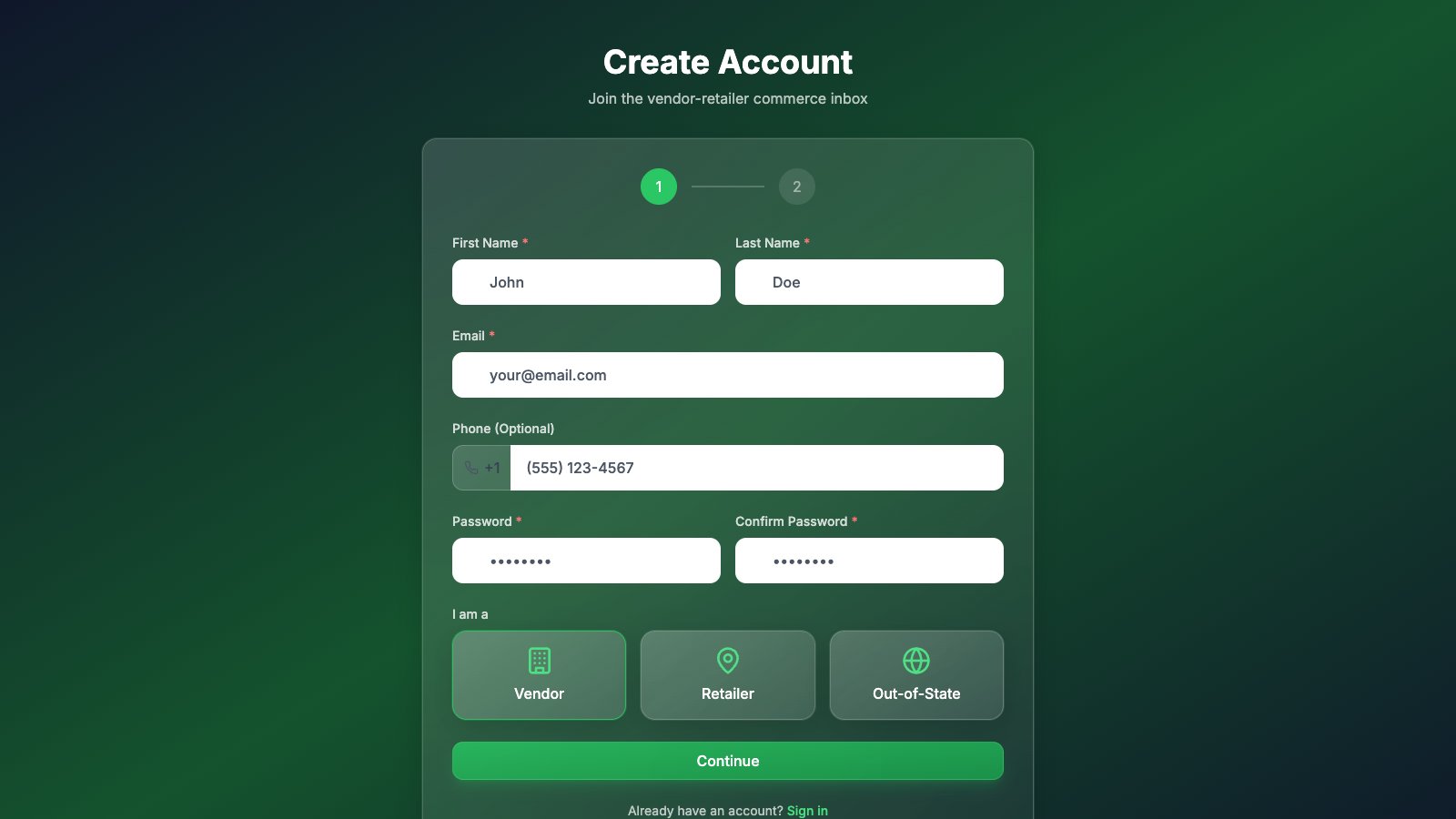
- 1Go to weedus.app/auth/register.
- 2Fill in your name, email, and a password, then choose the Vendor card.
- 3Press Continue and enter your business details: name, address, phone, business email, and your WA producer/processor license number.
- 4Press Create Account. Vendor accounts are reviewed by the WeedUs team — you'll get an email as soon as you're approved, usually quickly. Until then, signing in shows a "pending approval" message.
2.The Getting Started checklist
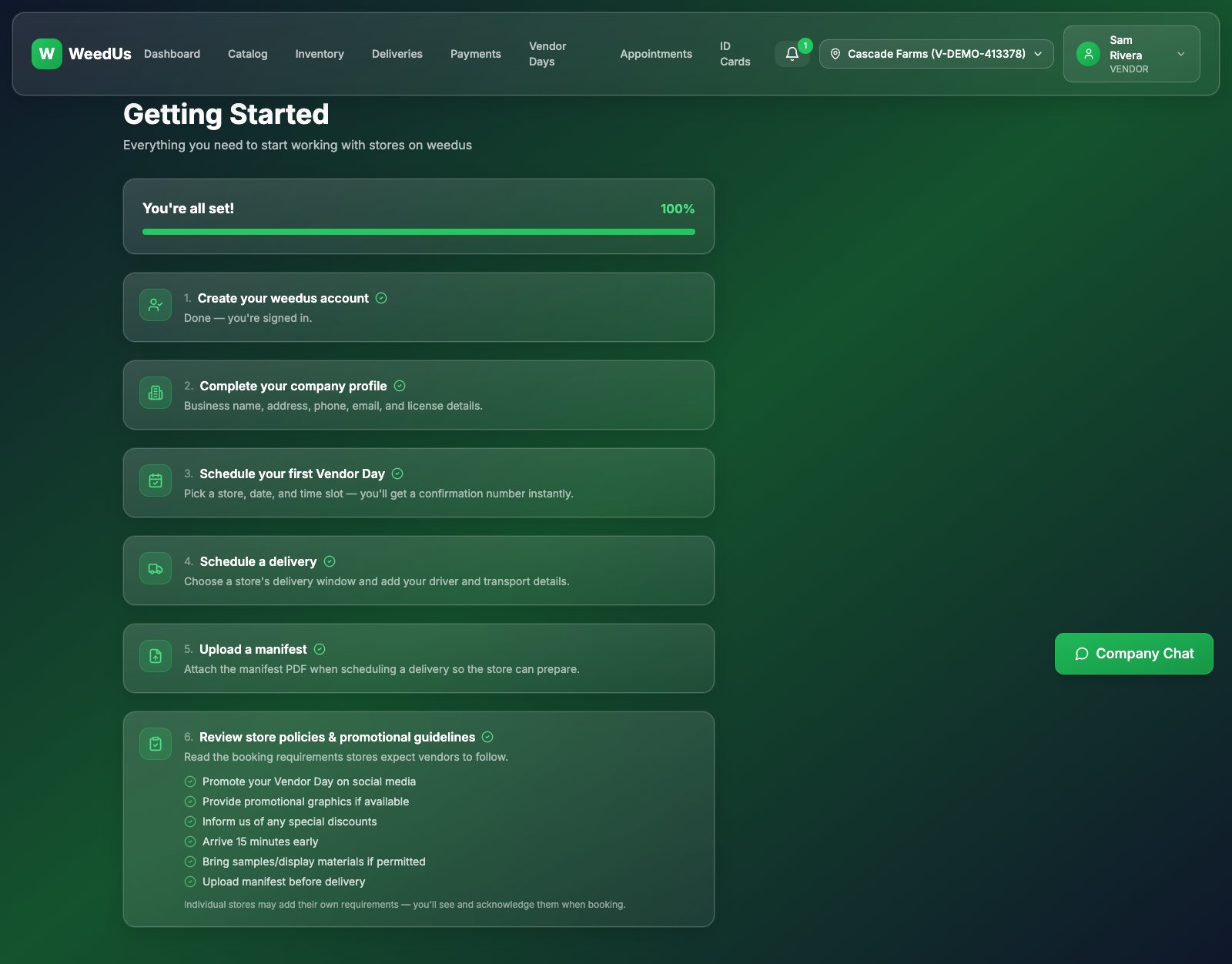
Once approved, open Getting Started. It tracks the platform steps that make your account fully operational — account, company profile, and store policies — and links you into the Commerce app for your first vendor day and delivery.
3.Subscriptions
The core WeedUs platform is currently free for vendors — catalog, orders, deliveries, and vendor days included.
Want sales analytics across your stores? WeedUs Analytics at analytics.weedus.app is an add-on service with its own plans (Free, Starter $99, Pro $299, Enterprise $799 per month). Sign in with your WeedUs account; paid plans check out through a secure Stripe page and bill to your vendor organization.
4.Daily work: WeedUs Commerce
Everything operational lives in the WeedUs Commerce app at commerce.weedus.app — sign in with the same WeedUs account:
- Catalog — publish products (WCIA upload, photos, bulk actions).
- Orders — receive and respond to retailer orders.
- Deliveries — book store delivery windows with manifests and invoices attached.
- Vendor days — book in-store days, recurring series, and QR check-in.
- Inventory — see your products' stock at each store.
- Payments, ID cards, appointments, inbox & chat — all in the same app.
The Commerce app has its own in-app guides covering each feature step by step.
5.Locations, settings & help
- Multiple locations? Manage Locations (profile menu) adds new licensed locations, each with its own license.
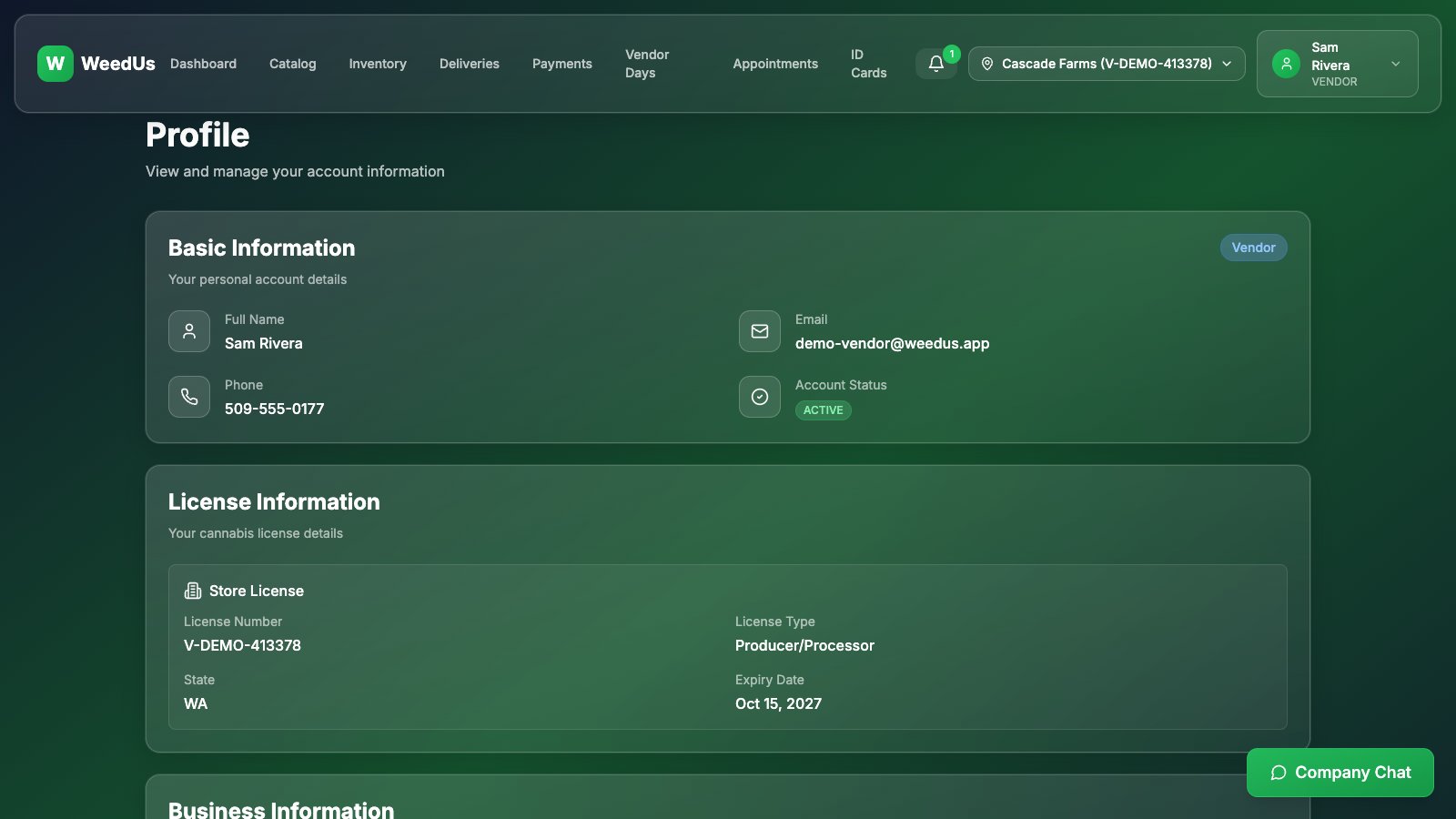
- Profile shows your account summary; Settings is where you edit business info and change your password.
- Teams — invite your team and control what each member can do.
- Questions or ideas? Profile menu → Feedback. And these guides are always at profile menu → Help & Guides.